Few things sour a repair like a bill the customer did not expect. The fix is old and simple: agree the price before you start. The hard part is doing it every time, in a way you can prove later, without phoning people who do not pick up. This guide covers what a good estimate contains, how to ask for approval by hand, and how Repair & Service Ops puts the question on the customer's phone.
What a good repair estimate says
- What you found and what you will do, in plain words.
- The price, split into labour, parts and anything else, with tax shown the way your country expects.
- What is not included, and what happens if you find more once the item is open.
- How long the work is likely to take.
- Whether a deposit is needed, and how much.
- The terms: how long you keep uncollected items, and what you are not liable for.
Be honest about uncertainty. An estimate based on a first look is not a fixed price, and saying so early prevents the argument later.
Getting approval by hand
The manual routes are a phone call, a text message or an email with the price. They work. The weakness is the record: a verbal yes is not written down, an email thread is hard to find, and a customer who said yes to one price may remember another. If you stay manual, write the price, the date and who agreed on the ticket or in the order note before you pick up a screwdriver.
How online approval works in Repair & Service Ops
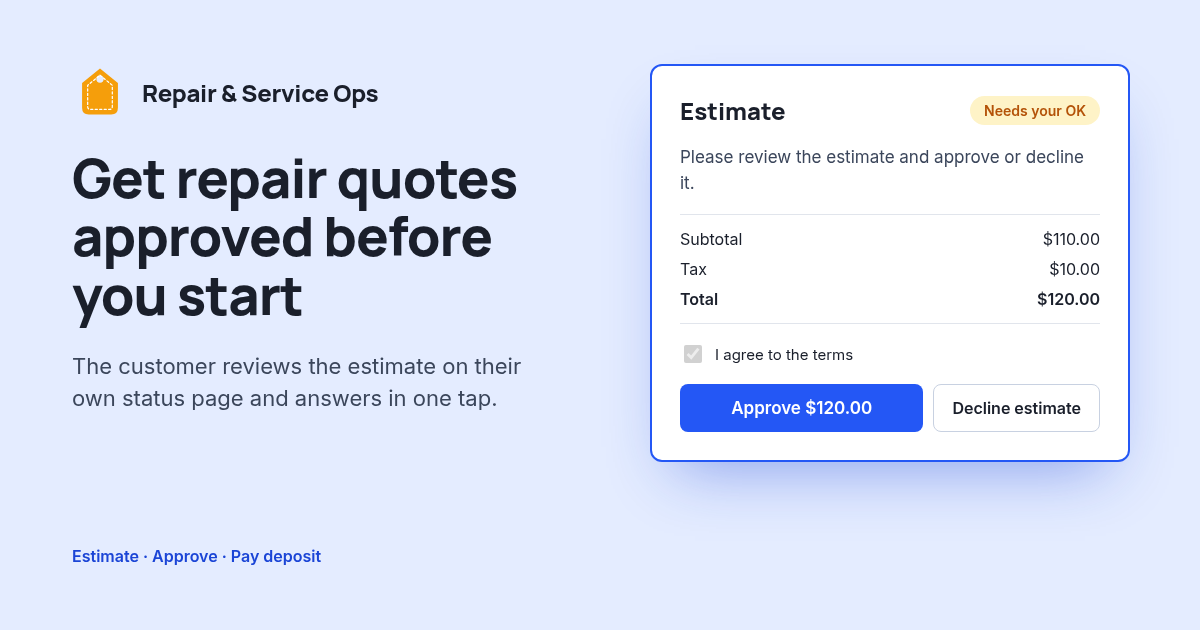
From the Business plan, a ticket can ask the customer to approve the estimate. The customer gets an email, or a text if you use texting, with a link to their status page. There is no account to create. The page shows an Estimate section with the total, the items and charges, and an optional note from you. The customer chooses Approve estimate or Decline estimate. A decline can include a reason of up to 500 characters.
Terms the customer agrees to
If you have written terms, the customer must tick I agree to the terms before the Approve button works. The agreement is recorded in the ticket's history as Terms agreed. If you change the terms while someone is reading, they are asked to read them again.
Deposit through Shopify checkout
If a deposit is due, the status page shows a Pay deposit button that opens the shop's own Shopify checkout. Customers leave the page, pay securely, then return to the same link. The deposit rule is yours: a percentage of the bill before tax, a fixed amount, or none. Taking deposits and online payments is part of the Pro plan.
When there is nothing to charge
For a warranty job with no charge, the page says nothing will be charged and asks the customer to confirm that they agree to the work. Our guide to warranty and paid repairs covers that case.
What you see on your side
While the customer has not answered, the ticket shows a Waiting for approval badge, and you can keep working on the repair meanwhile if you choose. When they approve, it shows Approved. These badges are worked out from the ticket's state, not set by hand. You get an email when a customer approves or declines.
In the Estimate approval section you can Request approval, Resend it, or Withdraw the request. A new request replaces any earlier one. Withdrawing stops the customer's link from accepting an answer, and you can send a new request later. If the answer came in person or by phone, use Record answer, so the ticket still has a written decision.
When the price changes after approval
Repairs change. A battery turns out to be fine, or a second fault appears. If the price or the work changes after approval, the ticket shows Estimate changed since approval, and a note such as Approved at one amount, the price is now another, so approval is needed again. The customer's page shows the change too. Request approval again so they agree to the current bill. If the customer had the page open while the price moved, nothing is approved, and they are asked to review the new estimate first.
Reminding people who go quiet
An estimate reminder can email the customer when an estimate is still waiting, a number of days after it was requested. It is off until you turn it on, and it is part of the Business plan.
A routine you can keep
- Inspect the item, then write the estimate with the work and the price.
- Send the approval request and tell the customer how it will arrive.
- Keep working only if you are happy to carry the cost of a decline.
- If the scope changes, request approval again before you do the extra work.
- At pickup, take the balance, with any deposit already counted.
Tickets are on the Free plan, with 20 a month. Estimate approval is on Business. The pricing page lists every plan, and the status page guide shows the rest of what customers see.
Frequently asked questions
Which plan do I need for online estimate approval?
Asking customers to approve estimates is part of the Business plan. Taking the deposit through checkout is part of the Pro plan.
Does my customer need an account to approve?
No. They open the link in their email or text and answer on their status page.
What if the price changes after approval?
The ticket shows Estimate changed since approval. Request approval again so the customer agrees to the current bill.
Can I record an answer given by phone?
Yes. Use Record answer on the ticket, so the decision is written down with the ticket's history.