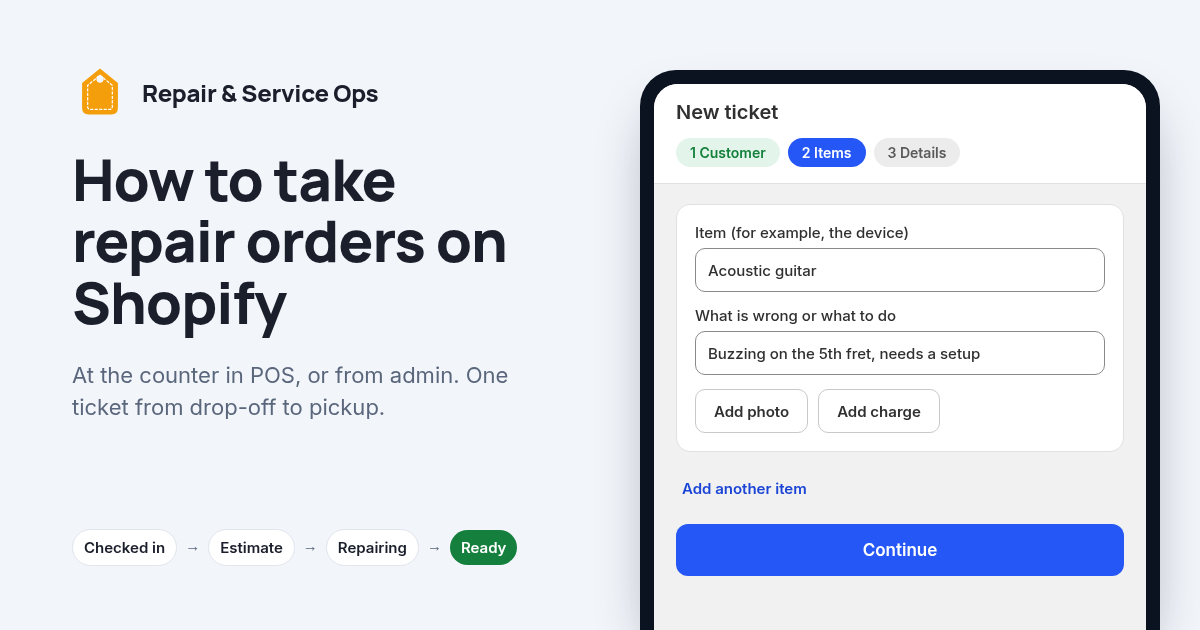
If you sell on Shopify and also fix things, you have probably tried to take repair orders with whatever was at hand: a notebook, a spreadsheet, a draft order with a long note. That works for the first few jobs. This guide explains what a repair order has to capture, how to take one with no extra software, where that approach starts to hurt, and how a repair ticket app does the same job inside Shopify.
Why Shopify does not take repair orders by itself
Shopify is built around selling products: orders, customers, inventory and checkout. A repair is a different kind of job. The customer hands you something that is already theirs, the price is often unknown until you have looked at it, the work moves through steps, and the customer wants to hear how it is going. Shopify does not include a repair intake feature, so every shop fills that gap in its own way.
What every repair intake must capture
Whatever tool you use, write down the same things at the counter. Skipping any of them is how disputes start later.
- Who: the customer's name, email and phone number, and whether they agree to be contacted by text message.
- What: the item, with make and model, and how many items are in the job.
- The problem: what the customer says is wrong, in their words, and the work you were asked to do.
- Condition and extras: scratches, missing parts, and anything left with the item such as a case or a charger. A photo settles most arguments.
- Money: an estimate or a spending limit, and a deposit if you take one.
- Time: when you expect to be done.
- A reference: a ticket number the customer can quote when they call or come back.
- Terms: what the customer agrees to, such as how long you keep an item that is never collected.
Option 1: take repair orders without an app
You can start with tools you already have, and for a few jobs a week that is a sensible choice.
Draft orders and order notes
Create a draft order for the customer, add a custom line such as "Repair: guitar setup", and put the item and the problem in the note. You get a customer record and a way to bill later. You do not get repair statuses, an intake form, or a page where the customer can check progress.
A spreadsheet and a paper tag
One row per job, and a paper tag tied to the item with the same number. It is cheap and quick. The risks are a tag that falls off, two people editing the same row, and no record of who changed what.
With either method, give every job a ticket number, write it on the tag and hand it to the customer. Everything else depends on that one reference.
Where the manual approach starts to hurt
- Customers phone to ask whether their item is ready, and someone has to go and look.
- An estimate agreed on the phone is not written anywhere, so the price is argued at pickup.
- Deposits arrive as payments that are not tied to a job.
- The person at the counter cannot see what the technician has done.
Once you take more than a handful of repairs a week, a repair ticket app starts to earn its place.
Option 2: a repair ticket app inside Shopify
Repair & Service Ops adds repair tickets to your Shopify admin. A ticket holds the customer (a Shopify customer, so there is nothing to import), one or more items, the work and its charges, photos, notes and a status. You can watch a repair from drop-off to pickup in the demo. There are three places to take a repair in.
In the Shopify admin
The New ticket page asks you to find or create the customer, add each item with a name and what is wrong, add charges, set a deposit and a due date, and write an internal note that only your team sees. When the ticket is created the customer receives an email saying the repair was received, with a link to follow it. You can skip that email for a single ticket.
At the POS counter
With Shopify POS, the Repair desk tile creates tickets at the register. The POS setup guide walks through it. Counter intake is part of the Pro plan.
From the customer
A Repair center page on your store lets a customer send a request with photos before they visit. You review it, and an accepted request becomes a ticket. The Repair center is part of the Pro plan, and the guide for shops that sell and repair shows how it fits a retail shop.
A status flow your customers can follow
A new shop starts with five steps: Received, Assessing, In Progress, Completed and Picked up. Each ticket sits in one step, and the customer sees its progress on a status page opened from a link, with no account to create. By default the customer is emailed when the repair reaches the Completed step, which is the ready for pickup message. Other steps can send an email too if you turn that on. Our guide to the repair status page covers what customers see. Renaming and adding your own steps is part of the Business plan.
A simple way to start
- Write down the intake fields above and decide which ones are required at the counter.
- Give every job a ticket number and put it on the item and on the customer's copy.
- Agree an estimate before work starts, and keep a record of the answer.
- Choose the names of your steps, and decide which ones the customer is told about.
- Tell customers how they will hear from you, and keep the contact details current.
The Free plan includes 20 repair tickets a month, which is enough to try the whole flow on real repairs. See the pricing page for what each plan adds, or take a look at the app first.
Frequently asked questions
Does Shopify have a built-in way to take repair orders?
Not as a repair feature. Shopify handles orders, customers and checkout, so repair shops use draft orders and notes, a spreadsheet, or an app that adds repair tickets.
Do I need Shopify POS to take repairs?
No. Everything works from your Shopify admin. With Shopify POS, from the Pro plan, the counter can take in repairs and payments too.
Do my customers need an account?
No. They follow a repair on a status page opened from a link, and they hear from you by email, or by text from the Business plan.
How many repairs can I take on the Free plan?
The Free plan includes 20 repair tickets a month. Paid plans raise that limit.