The most common call a repair shop receives is "Is it ready yet?" Each one interrupts the person doing the work, and the answer is usually "not yet". Customers are not being difficult. They have handed over something they depend on and they have no way to see what is happening. A repair status page and a few well-timed emails remove most of those calls. This guide explains what to show, what to send and when.
Why customers call, and what they actually want
A customer who calls wants one of four things: to know the repair arrived, to know when it will be done, to know whether they owe a decision, or to know it is ready. If you answer those four without being asked, the calls mostly stop. That is the whole idea behind a status page.
What a repair status page should show
- Where the repair is now, as a short list of steps with the current one marked.
- The items in the job, and photos if you took them.
- The estimate, and a clear way to answer it.
- The amount, what has been paid and what is left.
- A history of what has happened, with dates.
- A way to message the shop without a phone call.
It should open from a link, with no account or password, and it should work on a phone, because that is where it will be read.
What the page looks like in Repair & Service Ops
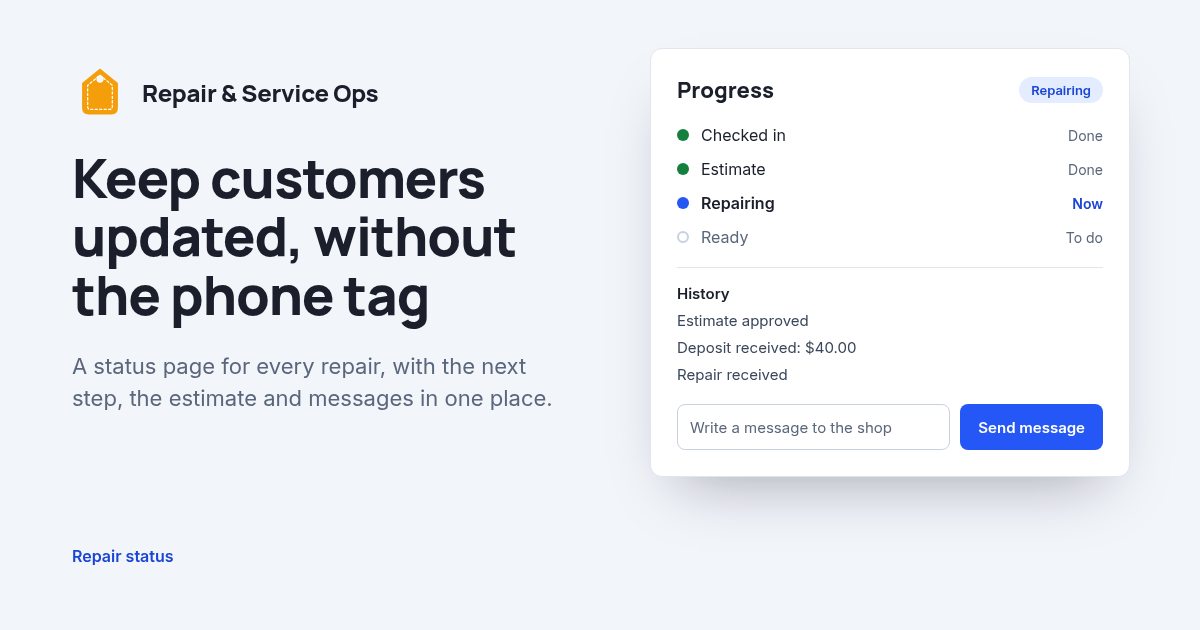
Every ticket has a status page. The customer opens it from the link in their email or text. It shows a Progress section with each step marked Done, Now or To do, then the items, photos, the amount with Paid and Balance due, and an Estimate section when there is one to answer. A History section lists events such as Repair received, Estimate sent for approval, Estimate approved, Deposit received and each status change, with a note that dates are in shop time.
The customer can write to you in a Messages section, with up to five photos in a message. Your reply appears there, and the customer also receives it by email. A new customer message is flagged on your ticket, and you can be emailed about it. Where a deposit or balance is due, a Pay button opens your Shopify checkout. Online payment is part of the Pro plan, and the Estimate section needs the Business plan, as the quote approval guide explains.
Which update emails to send
Keep the list short. Each message should tell the customer something new.
When the repair is received
As soon as a ticket is created, the customer gets an email with the ticket number, the expected date if there is one, and a Track my repair button. This one is on by default, and you can skip it for a single ticket.
When the status changes
A new shop starts with five steps: Received, Assessing, In Progress, Completed and Picked up. Each step has its own email setting. By default the customer is told when the repair reaches the Completed step, because that is the message they most want. You can switch on emails for other steps. Texts for steps are part of the Business plan, and the customer's consent to texts is recorded on the ticket.
When it is ready
The ready email says the item is waiting, reminds the customer to bring the ticket number, shows any balance due and offers a Pay online button. If the repair is shipped back, it says so instead, and a sent back step can carry the carrier and tracking number.
When something else changes
- If you change the expected date, the customer is emailed the new one.
- When you reply to a message, they get your reply.
- When a payment is received, they get a receipt message with the remaining balance.
- When you issue a refund, they are told.
From the Business plan, you can also send reminders: an estimate that is still waiting, a finished repair not yet collected, a warranty about to end, a service due, and a review request after pickup. Each is off until you turn it on.
Setting it up in an afternoon
- Decide which steps your customers should be told about. Ready is the one that matters most.
- Read each message once as a customer would, and shorten anything vague.
- Print the status link or its QR code on the label or slip, so it also reaches customers who leave without an email.
- Tell people at drop-off how they will hear from you, and ask before you turn on texts.
- Check one real ticket from end to end on your own phone.
Status pages and email notifications are part of the Free plan, which includes 20 repair tickets a month. See the pricing page, or watch the demo. If you also sell products, the guide for shops that sell and repair shows how it fits.
Frequently asked questions
Does the customer need an account to see their repair?
No. They open a link from their email or text. The page is private to anyone holding the link.
Which emails are on by default?
The received email is on, and so is the ready email at the Completed step. You can switch on emails for other steps.
Can customers message the shop from the status page?
Yes. They can write a message, with photos, and the shop's reply shows there and is emailed to them.
Are text messages included?
Texts to customers are part of the Business plan. Email notifications are included on every plan, including Free.